How to Fix "No New Messages During This Drive" on Android Auto | A Complete Guide
Why does Android Auto show "No new messages during this drive"?There are two separate causes. If you use CarStream, Fermata Auto, or another AAAD app: this message is a generic placeholder Android Auto displays when a third-party app fails to load it has nothing to do with text messages. The fix is enabling Developer Mode and Unknown Sources in Android Auto settings. If you use standard Android Auto without third-party apps: this is a known bug in Android Auto version 16.0 that breaks messaging
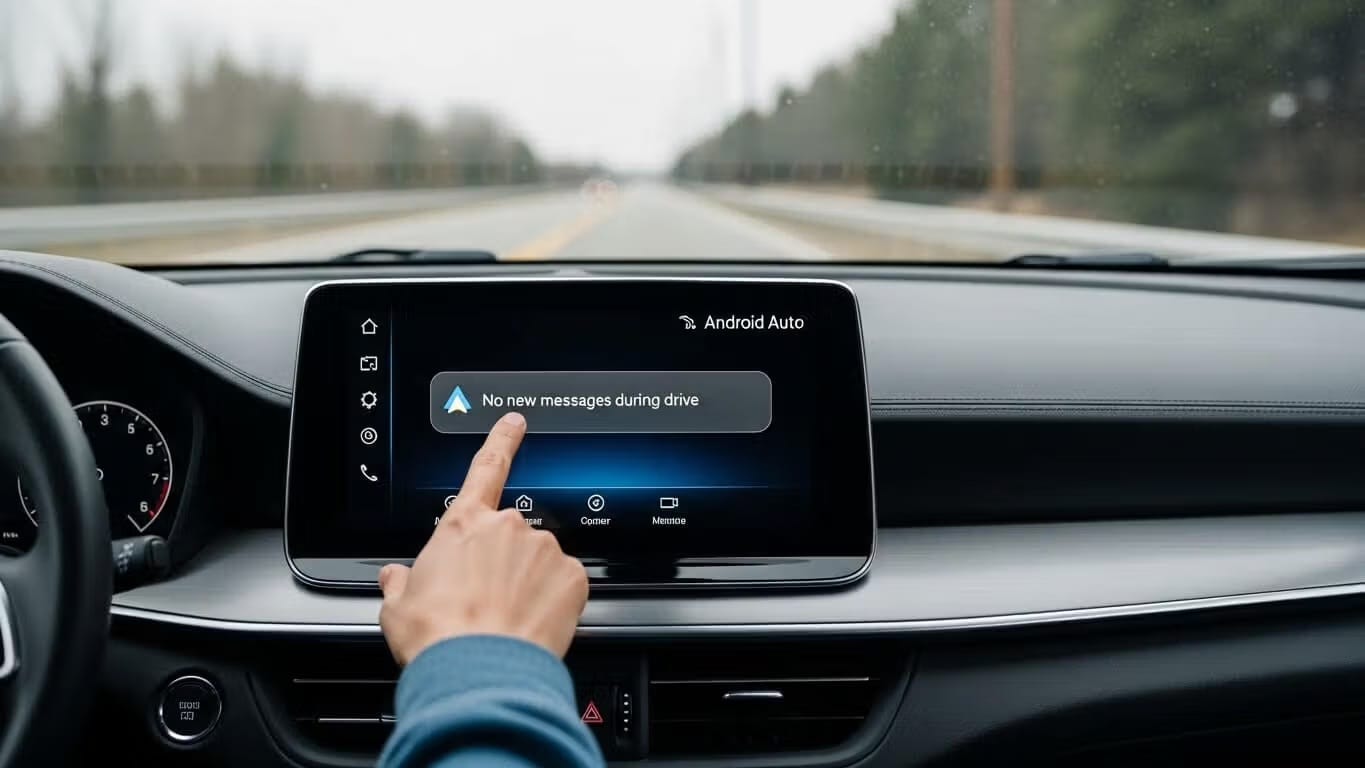
Why does Android Auto show "No new messages during this drive"?There are two separate causes. If you use CarStream, Fermata Auto, or another AAAD app: this message is a generic placeholder Android Auto displays when a third-party app fails to load it has nothing to do with text messages. The fix is enabling Developer Mode and Unknown Sources in Android Auto settings. If you use standard Android Auto without third-party apps: this is a known bug in Android Auto version 16.0 that breaks messaging notifications. Both fixes are below.
Find Your Fix
| Your situation | What's actually happening | Jump to |
|---|---|---|
| Using CarStream or Fermata Auto via AAAD | Generic app-load error — not a messaging issue | Section 1 |
| Standard Android Auto, "Reply" button broken | Android Auto 16.0 messaging bug | Section 3 |
| Samsung device, error only after One UI 7 update | Dual Messenger duplication bug | FAQ |
| Android 14 or 15, software fixes aren't working | OS-level permission block | Section 2 |
If you are encountering the "No new messages during this drive" error, you are likely facing one of two distinct issues: a software bug in Android Auto version 16.0 or a compatibility barrier involving third-party apps installed via AAAD (Android Auto App Downloader). While the official Android Auto update has broken replies for some, users of apps like CarStream and Fermata Auto through aaad.app are finding that newer Android versions (14 and above) require specific workarounds to restore functionality.
Why Does CarStream Display "No New Messages During This Drive"?
This message is not about text messages. Android Auto reserves a status area at the bottom of every app's interface and populates it with system messages. When a third-party app like CarStream fails to fully initialize — usually because Developer Mode or Unknown Sources is disabled — Android Auto fills this status area with its default messaging placeholder. The fix is always the same: enable the correct settings in Android Auto's developer menu so the app can load completely. If you see this message inside CarStream, Screen2Auto, or Fermata Auto, skip directly to Section 1.
1. Fixing the AAAD & CarStream "No New Messages" Error
For many users, this error is not actually about text messages; it is a generic message displayed when uncertified apps like those from AAAD are blocked by the system. This is particularly common on devices like the Samsung S23/S24 Ultra, Pixel 7/8 Pro, and OnePlus 9 Pro 5G running Android 14 or 15.
Enable Developer Mode & Unknown Sources
To allow apps from AAAD to run, you must unlock hidden settings within Android Auto:
- Open Android Auto settings on your smartphone.
- Scroll to the bottom and tap "Version" or "Version and permission information" 10 times until a prompt confirms you are a developer.
- Tap the three dots in the top-right corner and select Developer settings.
- Set the "App Mode" to Developer.
- Scroll down and check the box for "Unknown sources".
- Restart your device to ensure the changes take effect.
The "One-Time" Permission Popup
A common reason for the "No new messages" error is accidentally denying a system popup on your phone during the app's first launch. This popup often asks for permissions related to messaging or system overlays. If you select "No" or "Deny," the app will fail to load and display the error message on your car's head unit. To fix this, you may need to reinstall the app through AAAD to trigger the prompt again.
2. The AAWireless Dongle Workaround (For Android 14+)
Users have discovered that standard software fixes often fail on Android 14 or higher. A highly successful solution involves using an AAWireless dongle with its own specific developer settings.
Step-by-step process:
- Connect your phone to the AAWireless dongle via USB or Bluetooth as you normally would.
- On your phone, open the AAWireless companion app.
- Tap the Options tab at the bottom of the screen.
- Select Advanced Options.
- Toggle Developer Mode to ON.
- A confirmation prompt will appear — tap Enable.
- Disconnect and reconnect to Android Auto to apply the change.
3. Troubleshooting the Android Auto 16.0 Messaging Bug
If you are using the official Android Auto app and the "Reply" button is broken, you are likely a victim of the version 16.0 bug.
- The Symptoms: Tapping "Reply" triggers an error asking you to contact your Google Workspace administrator, even on personal accounts.
- The Cause: This appears to be a server-side issue affecting Google Workspace (work or school) accounts rather than a local app glitch.
- The Fix: Since clearing cache and reinstalling rarely works for this specific bug, users are advised to use voice commands ("Hey Google, text [Name]") until Google rolls out a patch.
4. Universal Maintenance for All Connection Errors
Clear Cache and Storage Corruption in temporary files can lead to lags, crashes, and "No new messages" errors.
- Go to Settings > Apps > Android Auto.
- Select Storage & cache and tap Clear Cache.
- If issues persist, repeat this for Google Play Services.
- Force Stop the app and restart your phone to rebuild fresh files.
Disable Aggressive Battery Optimization
Android's "Adaptive Battery" often reverts apps to "Optimized" mode, which can cause audio drops or connection failures in Android Auto.
- Navigate to Settings > Apps > Android Auto > Battery.
- Change the setting to Unrestricted.
- Note: You may need to disable the global "Adaptive Battery" toggle if the system keeps reverting your individual app settings.
Frequently Asked Questions (FAQs)
Can I see old text messages while using CarStream?
No. CarStream only supports reading messages received after you have connected to the car. For full message history, you would need to use a phone-mirroring app.
Why does my Samsung phone show two versions of Android Auto?
This is a known bug in One UI 7 where the "Dual Messenger" feature duplicates system apps. This duplication causes significant lag and crashes; you must disable the dual app version and force stop both to fix it.
My "Unknown Sources" setting is enabled, but CarStream still won't show up.
Ensure you have also selected "Developer" under the "App Mode" setting within the Android Auto Developer menu.
How can I safely read messages if the notification popup is missing?
Check your phone's notification settings for the specific messaging app (e.g., Google Messages) and ensure "Pop on screen" is enabled. If this is off on the phone, the popup will often fail to appear on the car screen.
What if my car doesn't support Android Auto at all?
You can use Google Assistant Driving Mode (Android 9.0+ with 4GB RAM), which offers a card-based interface and auto-read features for messages via voice commands.
Related Topics
Unlock the Power of Android Auto
Experience full customization. Download the official AAAD downloader and start running custom YouTube, mirror, and media apps in your car today.
Install AAAD Now