How to Install Fermata Auto on Android Auto Without Root (2026)
Fermata Auto is a free, open-source media player for Android Auto that plays local video files, IPTV playlists, and streaming content — no root required. To install: download AAAD, tap Fermata Auto, install the APK, then install Fermata Control (required companion). Enable Unknown Sources in Android Auto Developer Settings, connect to your car, and Fermata Auto will appear in the launcher. Want to play local videos, IPTV playlists, or stream content on your car's display without rooting your ph
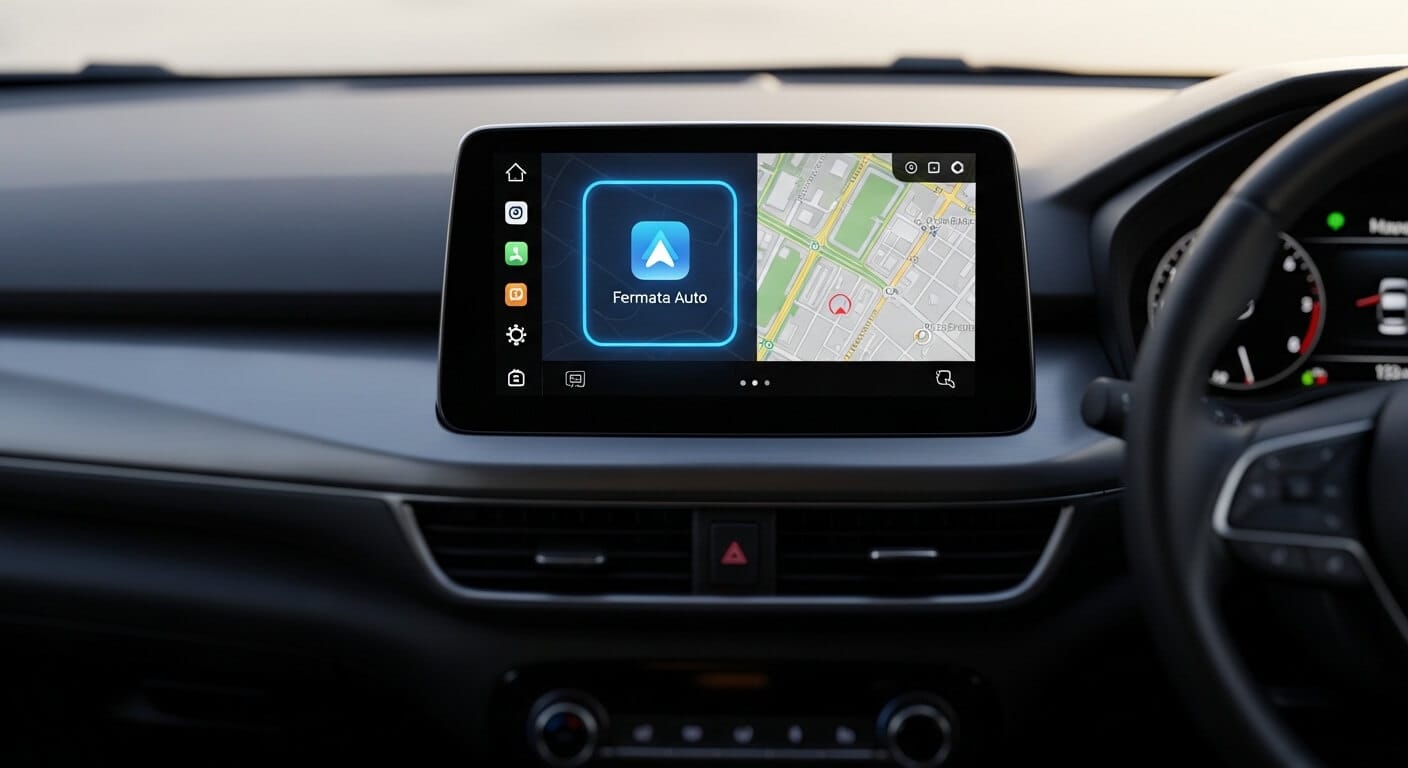
Fermata Auto is a free, open-source media player for Android Auto that plays local video files, IPTV playlists, and streaming content — no root required. To install: download AAAD, tap Fermata Auto, install the APK, then install Fermata Control (required companion). Enable Unknown Sources in Android Auto Developer Settings, connect to your car, and Fermata Auto will appear in the launcher.
Want to play local videos, IPTV playlists, or stream content on your car's display without rooting your phone? Fermata Auto is the solution. This guide walks you through the full installation process for Android Auto in 2026 — including the Fermata Control companion app that most guides miss — plus troubleshooting for Android 13, 14, 15, and 16.
Whether you're using Android 13, 14, 15, or even the latest Android 16, this guide covers all installation methods, troubleshooting tips, and best practices to get Fermata Auto working on your car's infotainment system.
What Gets Installed on Your Phone?
| App | Function | Required? |
|---|---|---|
| Fermata Auto | Main media player — local video, IPTV, YouTube via plugins | ✅ Yes |
| Fermata Control | Companion app — makes Fermata visible in Android Auto launcher | ✅ Yes |
| Fermata Mirror | Mirrors your phone screen to your car display | Optional |
| Fermata FS Mirror | Full-screen variant of Fermata Mirror | Optional |
What is Fermata Auto?
Fermata Auto is a free, open-source media player designed specifically for Android Auto. Developed by Andrey Pavlenko and available on GitHub, Fermata Auto bypasses Android Auto's built-in restrictions to unlock multimedia capabilities that Google doesn't officially support.
Unlike the standard Android Auto interface, which limits you to approved apps like Google Maps, Spotify, and messaging apps, Fermata Auto transforms your car's infotainment system into a complete entertainment hub.
Key Features:
| Feature | Details |
|---|---|
| Local Video Playback | Play movies, TV shows, and personal clips from internal storage or SD card |
| IPTV Streaming | Stream IPTV playlists directly on your car's display |
| YouTube & Netflix | Access via the built-in YouTube plugin — select "YouTube" in Fermata's source list. For dedicated YouTube on Android Auto, CarStream offers a more streamlined experience. |
| Steering Wheel Controls | Integrates with your car's media buttons for hands-free playback |
| No Root Required | Works on standard Android 6.0+ devices without voiding your warranty |
| Open Source | Fully auditable code on GitHub with verified checksums |
Step-by-Step Installation Guide
Step 1: Download the AAAD Installer
Fermata Auto is not available on the Google Play Store. You must use AAAD to install it.
Step 2: Select Fermata Auto
1. Open AAAD on your phone.
2. You will see a curated list of apps. Locate Fermata Auto in the list.
3. Tap to select it.
Step 3: Handle the Installation (Crucial Step)Tap the install button.
• Common Issue: Fermata Auto is a "heavy" file compared to other apps. Because GitHub servers can sometimes be slow, your phone might think the download has frozen.
• The Fix: If you see a system popup saying "App not responding," do not close it. Keep pressing "Wait" until the download finishes and the installation prompt appears.
Install Fermata Control (Do Not Skip)
After Fermata Auto installs successfully, do not disconnect from AAAD yet.
- Return to the AAAD app list.
- Locate Fermata Control in the list.
- Tap and install it exactly as you did Fermata Auto.
Note for free AAAD users: Fermata Auto and Fermata Control count as two separate downloads. If you are on the free plan and have used your download this month, you will need AAAD Pro to install both. Alternatively, wait for the 30-day timer to reset and install them on separate cycles.
Step 4: Enable "Unknown Sources" in Android Auto
Even after installing Fermata Auto, it will likely not appear on your car screen immediately. You must tell Android Auto to accept apps from "Unknown Sources".
1. Open your phone's Settings and search for Android Auto.
2. Scroll down to the Version section.
3. Tap the text "Version and permission info" 10 times rapidly until you see a prompt to enable "Developer Mode." Tap OK.
4. Tap the three-dot menu (top right) and select Developer settings.
5. Check the box for Unknown Sources.
◦ Why? Standard settings only display apps from the Google Play Store. This toggle allows sideloaded apps like Fermata to appear on the launcher.
Step 5: Grant Permissions to Fermata Auto
Before connecting to your car, grant Fermata Auto the permissions it needs to function correctly. Missing permissions cause playback failures that look like app crashes.
- Go to Settings → Apps → Fermata Auto.
- Tap Permissions and enable:
- Storage (required for local video playback)
- Display over other apps / Screen Overlay (required for mirroring features)
- Go to Settings → Apps → Fermata Control.
- Ensure it has no permissions blocked.
- Optionally, open Fermata Auto directly once before connecting to your car. This triggers the first-run setup and prevents a loading delay when Android Auto launches.
Step 6: Connect and Watch
Connect your phone to your car via USB or Wireless. Go to the Android Auto app launcher (the grid icon). You should now see Fermata Auto listed. Tap it to browse your phone's folders and play your video files.
Fermata Auto vs. CarStream: Which Should You Install?
| Fermata Auto | CarStream | |
|---|---|---|
| Best for | Local video, IPTV, offline content | YouTube streaming |
| Primary use | Files on your phone or SD card | Live YouTube playback |
| IPTV support | ✅ Yes | ❌ No |
| YouTube support | ⚠️ Via plugins | ✅ Native |
| Android 14+ stability | ✅ Recommended | ✅ Stable |
| Root required | ❌ No | ❌ No |
| Installer | AAAD | AAAD |
Troubleshooting Common Issues
1. The App Isn't Showing on the Car ScreenIf you completed the installation but don't see the icon:
• Check Customization: Go to Android Auto Settings > Customize Launcher on your phone. Ensure Fermata Auto is checked and not hidden.
• Re-check Developer Settings: Ensure "Unknown Sources" is definitely checked.
2. "No New Messages During Drive" Error
If the app opens but displays this error message, it is a known bug on specific devices (Oppo, Realme, OnePlus) or Android versions.
3. Android Version Compatibility Guide
Fermata Auto works across Android 13 through 16, but each version has specific quirks:
Android 13 Fermata Auto installs and runs without issues. Follow the standard guide above.
Android 14 Android 14 introduced stricter security restrictions that block third-party apps from auto-launching. Two proven fixes:
- Use a wireless Android Auto dongle (AAWireless, Motorola MA1, Carsifi) — wireless connections bypass the USB-level restrictions Android 14 introduced
- Alternatively, go to Settings → Apps → Fermata Auto → three-dot menu → Allow Restricted Settings, then re-enable all permissions
Android 15 Same wireless dongle fix applies. Additionally: clear the cache for both Android Auto and Fermata Auto after each app update. Go to Settings → Apps, find each app, tap Storage → Clear Cache.
Android 16 Fermata Auto is fully compatible with Android 16. The setup process is identical to this guide. Android 16 improves media handling stability, so users upgrading from Android 14 or 15 often report fewer connection issues.
Quick rule: If Fermata Auto worked before an Android update and stopped after, start with Settings → Apps → Fermata Control → Clear Cache, then restart your phone before trying any other fix.4. Connection FreezesIf the video freezes or the connection drops:
• Enable Developer Options on your phone (Settings > About Phone > Tap Build Number 7 times).
• Go to Default USB Configuration and change it to File Transfer / Android Auto.
Frequently Asked Questions (FAQ)
Is Fermata Auto free?
Yes. Fermata Auto is free and open-source. The installer, AAAD, allows one free download every 30 days. To download Fermata Auto or any other app in AAAD without a waiting period, you can upgrade to AAAD Pro.
Does installing Fermata Auto require rooting my phone?
No. Android Auto Fermata installation does not require root. AAAD installs Fermata Auto as a standard sideloaded APK, which does not modify system files or void your device warranty.
What Android versions does Fermata Auto support?
Fermata Auto supports Android 6.0 and above. It is fully compatible with Android 13, 14, 15, and 16. On Android 14 and later, a wireless dongle such as AAWireless often improves stability compared to a direct USB connection.
Why does Google Play Protect warn me about AAAD?
Google Play Protect flags any installer that downloads apps from outside the Play Store this is a generic warning, not specific to AAAD. AAAD is open-source and published on GitHub with checksums. Downloading from the official source ensures the file has not been modified.
How do I update Fermata Auto?
Fermata Auto does not include an auto-updater. When a new version is released, open AAAD and download the update manually. Free users are subject to the 30-day download limit; Pro users can update at any time.
What if I accidentally uninstalled Fermata Auto?
Free AAAD users will need to wait for the 30-day timer to reset before reinstalling. AAAD Pro users can reinstall immediately. The app itself is not tied to an account, so no data is lost.
Do I need to install Fermata Control separately?
Yes. Fermata Control is a required companion app and must be installed in addition to Fermata Auto. AAAD lists both apps separately — install Fermata Auto first, then return to AAAD and install Fermata Control. Without Fermata Control, Fermata Auto will not appear in your Android Auto app launcher regardless of other settings.
Why does Fermata Auto show four apps after installation?
Fermata Auto installs as a suite of four modules: Fermata Auto (main player), Fermata Control (required launcher companion), Fermata Mirror (screen mirroring), and Fermata FS Mirror (full-screen mirroring). This is by design. You only need Fermata Auto and Fermata Control for basic video playback and IPTV. The mirror apps are optional and can be hidden from your Android Auto launcher via Settings → Customize Launcher on your phone.
Unlock the Power of Android Auto
Experience full customization. Download the official AAAD downloader and start running custom YouTube, mirror, and media apps in your car today.
Install AAAD Now