Android Auto Third-Party Apps Not Working? The Ultimate Fix Guide 2026
Fix sideloaded Android Auto apps like CarStream & Fermata not showing or black screens in 2026. Ultimate AAAD Troubleshooting guide.
Are your sideloaded apps like CarStream, Fermata Auto, or Screen2Auto missing from your car’s dashboard?
It’s a familiar frustration for power users in 2026: you’ve used AAAD (Android Auto Apps Downloader) to install the perfect multimedia app, but when you plug into your vehicle, the icon is nowhere to be found or worse, it launches to a black screen.
As the Android ecosystem evolves, Google’s restrictions on automotive software have tightened. By default, the system aggressively blocks apps that do not come directly from the Google Play Store to prevent driver distraction. However, whether you’re dealing with the notorious "No Messages" error, apps crashing mid-stream, or icons refusing to appear, there are proven solutions.
This guide covers every known fix, from unlocking hidden developer menus to solving the persistent battery optimization bugs plaguing modern Android versions.
The Root Cause: Why AAAD and Sideloaded Apps Fail?
Android Auto uses a "walled garden" approach. When you connect your phone, the head unit checks the Installer Package Name of every app. If an app reports that it was installed by a file manager or a browser (sideloaded) rather than the Google Play Store (com.android.vending), Android Auto hides it automatically.
AAAD solves this by "spoofing" the installer name, tricking the system into thinking the app is official. If it still isn’t working, it’s usually due to one of four culprits:
- Blocked Developer Permissions (Most common).
- The "Reverting" Battery Bug (Common on Pixel/Samsung).
- Cached Connection Data causing "ghost" settings.
- Missing Callbacks in the app code (Black screen issues).
Fix #1: Enable "Unknown Sources" (The Mandatory Step)
If you’ve installed apps via AAAD or KingInstaller and they are missing from the launcher, you likely haven’t authorized the Android Auto host to run third-party software. This is a hidden setting that must be manually toggled.
How to Unlock It:
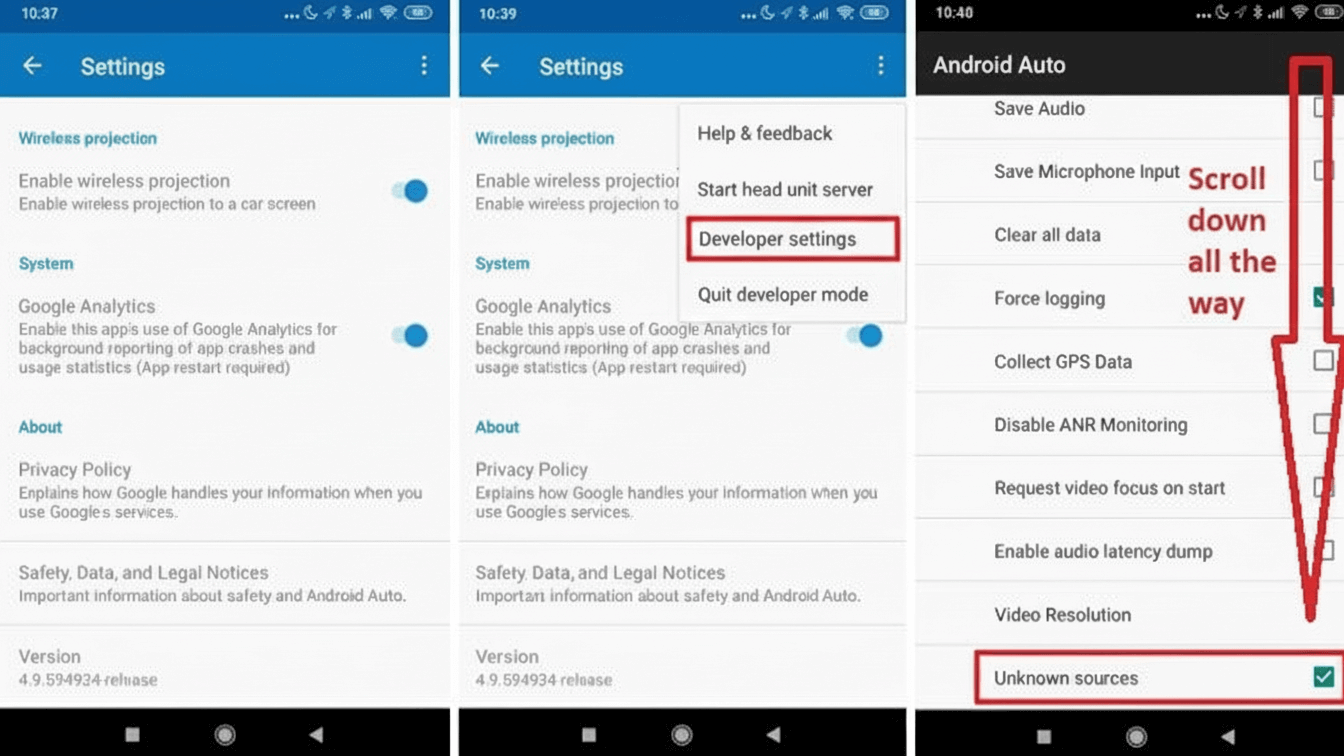
- Open the Android Auto app on your phone (often found inside Settings > Connected Devices).
- Scroll to the About or Version section at the bottom.
- Tap the "Version" text 10 times fast. A prompt will appear asking to allow development settings. Tap OK.
- Tap the three-dot menu (top right corner) and select Developer settings.
- Scroll down and check the box for Unknown sources.
- Reboot your phone and reconnect to the car.
This setting applies to media and parked apps but is essential for almost all AAAD installations.
Fix #2: The "Reverting" Battery Optimization Bug
Is your audio cutting out after 5-10 minutes? Or does the app crash when the screen turns off? This is a massive issue in 2025-2026, particularly for Samsung and Pixel users.
Android’s "Adaptive Battery" feature views Android Auto apps as background tasks and kills them to save power. The frustrating part? The system often resets your preferences automatically.
The Permanent Fix:
- Go to Settings > Apps.
- Find Android Auto and set Battery Usage to Unrestricted.
- Critical: Find the specific third-party app (e.g., Fermata Auto, CarStream) and set that to Unrestricted as well.
- Disable Adaptive Battery: In your phone’s general battery settings, turn off "Adaptive Battery" if the issue persists.
Warning: Users report that after an Android OS update, these settings often revert to "Optimized." If your apps stop working again in a month, check this setting first.
Fix #3: The "Deep Refresh" (For Apps Not Populating)
If you enabled Unknown Sources but the app is still missing, your car’s head unit is likely caching an old list of available apps. You must force a handshake refresh.
- Forget the Car: In Android Auto settings on your phone, go to Previously connected cars and delete your vehicle.
- Forget the Phone: On your car’s dashboard (infotainment settings), delete your phone from the Bluetooth/Device list.
- Clear Cache: On your phone, go to Settings > Apps > Android Auto > Storage and tap Clear Cache and Clear Data.
- Restart & Reconnect: Restart both devices. Plug in your USB cable. The setup wizard should run again, scanning for all compatible apps, including the sideloaded ones.
Fix #4: Advanced ADB Installation (When AAAD Fails)
If AAAD is not working, you can manually force an app to look like it came from the Play Store using a PC and ADB (Android Debug Bridge). This is the most reliable method for tech-savvy users.
- Enable USB Debugging in your phone's Developer Options.
- Connect your phone to a PC and open a command prompt/terminal.
- Type adb devices to confirm connection.
- Run the following command (replace the path with your APK's location): adb install -r -i com.android.vending /path/to/your/app.apk
- Why this works: The -i "com.android.vending" flag explicitly tells Android Auto that the Google Play Store installed this app, bypassing the security check that hides sideloaded apps.
Technical Insight: Why You Get "Black Screens" or "No Items"?
In 2026, many users report opening an app only to see a black screen or a "No Items" error. Recent technical research into Android Auto compatibility reveals this is often a code-level failure, not a user error.
According to 2025/2026 analysis, over 70% of issues are UI incompatibilities.
- Missing Callbacks: Android Auto requires apps to declare specific methods like onGetRoot() and onLoadChildren() to display content lists. If a sideloaded app hasn’t been updated to match the latest Android API, these "handshakes" fail, resulting in a blank interface.
- Voice Command Failures: If an app doesn’t properly register the MEDIA_PLAY_FROM_SEARCH intent, it may crash or fail to respond when you try to use voice controls, which is a major compliance requirement for the platform.
Solution: If you encounter this, you must find a newer (or sometimes older, more stable) version of the APK. Changing settings on your phone cannot fix a missing code callback.
Frequently Asked Questions
Q: Why does my screen say "No Messages during this drive"?
A: This cryptic error usually means the app is installed but lacks the correct "Signature" or "Installer" verification. It effectively means Android Auto sees the app but refuses to render its interface. Try Fix #4 (ADB Install) to spoof the installer package name.
Q: Can I watch YouTube while driving?
A: Apps like CarStream allow this technically, but Google actively blocks them for safety. Warning: Watching video while the vehicle is in motion is illegal in most jurisdictions and highly dangerous. These apps are intended for use only when parked.
Q: I have a Samsung/Pixel and the app keeps disappearing. Why?
A: This is the "Reverting Battery Bug." High-end Android phones utilize aggressive memory management. You may need to re-enable "Unrestricted" battery usage for Android Auto every time your phone receives a system update.
Q: Does my USB cable matter?
A: Yes, critically. Gas station cables often only support charging. You must use a cable capable of File Transfer. Look for the USB trident logo on the connector. If the car disconnects when you hit a bump, your cable is the problem.
Q: Do I need to root my phone?
A: No. Tools like AAAD and the ADB method (Fix #4) function without root access. However, rooting does offer easier ways to bypass these checks (like using the "Screen2Auto" root method), though it compromises phone security.
Q: Why is Fermata Auto showing up, but not CarStream?
A: Google maintains a server-side "blacklist" of package names it recognizes as non-compliant. Developers of these apps often release updates with new package names to evade this block. Ensure you are using the absolute latest version from the developer's repository.
Related Topics
Ready to Try AAAD?
Download AAAD and start installing third-party apps on Android Auto today.
Install AAAD